

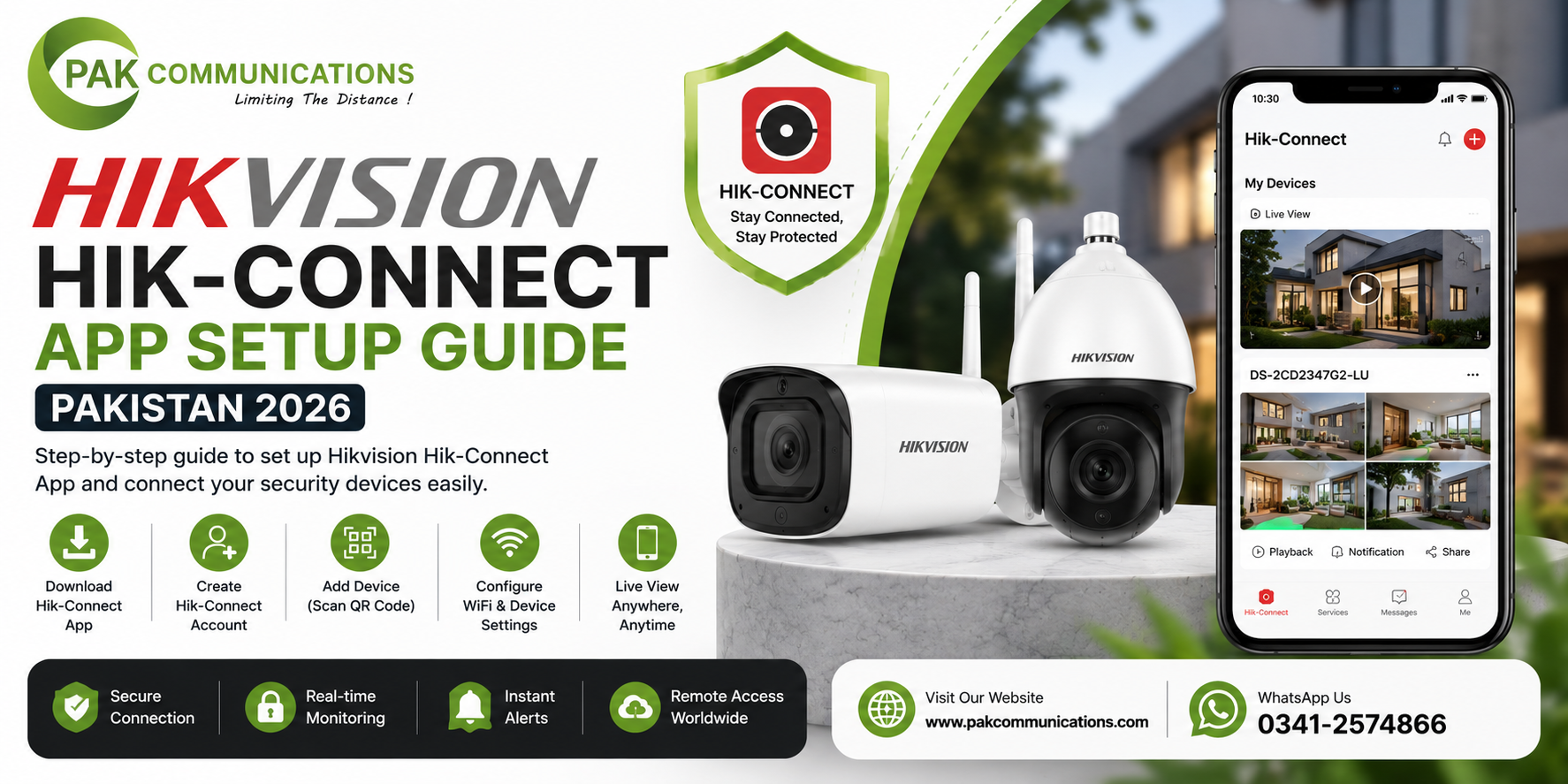
Pakistani homeowners and business owners who install a Hikvision CCTV system want one thing beyond the recording itself: the ability to check their cameras from a phone at any time, from any location, without sitting in front of the recorder monitor at the property. The Hikvision Hik-Connect app is the official Hikvision mobile application that delivers this remote access for every Hikvision WiFi camera, IP camera, NVR, and DVR in a Pakistani installation. Setting up Hik-Connect correctly the first time determines whether the system delivers reliable live view, instant motion alerts, and smooth remote playback on a Pakistani mobile network, or produces the frustrating disconnection, buffering, and missed notification problems that Pakistani users report when Hik-Connect is configured incorrectly during initial setup. This guide covers the complete Hik-Connect setup process for Pakistani users from app download through live view confirmation, motion alert configuration, and load shedding remote access, with specific guidance on the problems Pakistani network and power conditions create and how to resolve them. For the full range of Hikvision security camera models compatible with Hik-Connect available at PAK Communications, browse the current stock before reading further.
Contact PAK Communications:
- Phone: (021) 4832293-4
- WhatsApp: 0341-2574866
- Email: info@pakcommunications.com
- Address: Suite #08, 4th Floor, Dar-ul-Furqan Building, Gulshan-e-Iqbal Block 13-B, Main University Road, Karachi
- Hours: Mon-Sat 9:30 AM – 6:30 PM
What Is the Hikvision Hik-Connect App
Hik-Connect is Hikvision’s official remote monitoring and device management application for Android and iOS smartphones and tablets. It replaces the older iVMS-4500 application that Pakistani Hikvision users used in earlier years and provides a cleaner interface, faster device connection, improved notification delivery, and compatibility with the full range of current Hikvision cameras and recorders including all AcuSense AI, ColorVu, and WiFi camera models.
What Hik-Connect Allows Pakistani Users to Do
Hik-Connect allows a Pakistani homeowner or business owner to watch live video from any camera in their Hikvision installation on their smartphone screen from any location with a mobile data or WiFi connection. A homeowner in their office in Karachi can open Hik-Connect and watch their home’s gate camera live. A shop owner traveling to Lahore can check their Karachi shop’s CCTV cameras in real time. A factory manager can monitor the production floor and compound cameras from a phone in a meeting room anywhere in Pakistan.
Beyond live view, Hik-Connect delivers push notifications to the phone when a camera detects a motion event. For AcuSense-equipped cameras, these notifications arrive only when the camera’s AI confirms a genuine human or vehicle detection rather than triggering on wind, animals, or passing headlights. The notification includes a snapshot image of the detected event so the homeowner can see what triggered the alert without opening the full live view stream.
Hik-Connect also provides remote video playback, allowing Pakistani users to review recorded footage from their NVR or DVR hard drive or from a camera’s internal microSD card directly from their smartphone without returning to the property. This remote playback function is particularly useful for Pakistani business owners who need to review footage after a reported incident without being physically present at the property at the time of the review.
Devices Hik-Connect Supports in Pakistan
Hik-Connect supports all current Hikvision WiFi cameras as standalone devices connected directly to the app without a recorder, all Hikvision IP cameras connected to a Hikvision NVR, all Hikvision Turbo HD analog cameras connected to a Hikvision DVR, and Hikvision door stations and intercom devices that include remote video access capability. The app manages all these device types through a single account interface, so a Pakistani property owner with a home NVR system and a separate office DVR system can view both installations from a single Hik-Connect account without switching between apps or accounts.
Hik-Connect App Download for Pakistan
Android Download
Pakistani Android users download Hik-Connect from the Google Play Store. Open the Play Store app on the Android phone, search for Hik-Connect, and select the official Hik-Connect application published by Hangzhou Hikvision Digital Technology. Install the application and allow the notification permission when prompted during first launch, because this permission is required for motion event alerts to reach the phone. The current version of Hik-Connect for Android is compatible with Android 5.0 and above, which covers every Android smartphone in active use in Pakistan’s market.
iOS Download
Pakistani iPhone and iPad users download Hik-Connect from the Apple App Store. Search for Hik-Connect in the App Store and install the official application published by Hangzhou Hikvision Digital Technology. Allow notification permissions when prompted during first launch. The current version of Hik-Connect for iOS is compatible with iOS 11.0 and above.
Creating a Hik-Connect Account
Open the Hik-Connect app after installation and select the Register option on the opening screen. Pakistani users can register using a Pakistani mobile number or an email address. Mobile number registration is recommended for Pakistani users because it allows password recovery through SMS verification without requiring email access, which is faster and more reliable on Pakistani mobile networks during the account recovery process.
Enter the Pakistani mobile number with the country code prefix, receive the SMS verification code, enter the verification code in the registration screen, and set a password for the account. The password must contain a minimum of eight characters including at least one letter and one number. Store this password securely because it is required every time Hik-Connect is accessed on a new device.
How to Add a Hikvision Camera or Recorder to Hik-Connect
Adding a Hikvision WiFi Camera Directly
Pakistani buyers who want to browse the current range of Hikvision WiFi camera in Karachi and confirm availability before beginning the setup process can view all current stock on the PAK Communications WiFi camera page. A Hikvision WiFi camera that is not connected to an NVR is added to Hik-Connect as a standalone device. Power on the camera and wait for the startup sequence to complete, which takes approximately 30 to 60 seconds. In Hik-Connect, tap the plus icon in the top right corner of the device list screen and select Scan QR Code. Point the phone camera at the QR code printed on the label on the camera body or on the product packaging until Hik-Connect scans and recognises the code. Follow the on-screen prompts to set a device verification code for the camera and connect the camera to the home WiFi network by entering the WiFi network name and password. The camera appears in the Hik-Connect device list with a green online status indicator when the connection is successfully established.
Adding a Hikvision NVR or DVR to Hik-Connect
A Hikvision NVR or DVR that records from multiple IP or analog cameras is added to Hik-Connect as a single device that provides access to all connected cameras through one entry in the app device list. On the NVR or DVR itself, navigate to the system network settings and confirm that the Hik-Connect platform access option is enabled and that the device shows a connected status on the Hik-Connect platform interface within the recorder’s menu.
In the Hik-Connect app, tap the plus icon and select Scan QR Code. The NVR or DVR displays a QR code on its local monitor output that can be scanned directly from the recorder screen, or the QR code can be found on the label on the recorder’s physical housing. Scan the QR code, enter the device verification code set on the recorder during initial configuration, and the NVR or DVR appears in the Hik-Connect device list. All cameras connected to that recorder are accessible through the single recorder entry in the app without adding each camera separately.
Setting the Device Verification Code
Every Hikvision device added to Hik-Connect requires a device verification code that serves as the password for that specific device within the app. This verification code is set on the device itself during initial configuration, either through the recorder’s local menu, through the camera’s web interface accessed from a browser on the same network, or through the Hik-Connect setup wizard during the device addition process for new cameras. Pakistani users should set a unique verification code for each device and record it securely, because this code is required if the device needs to be added to Hik-Connect on a new phone or shared with another user.
How to Set Up Live View on Hik-Connect
Accessing Live View
After a device is successfully added to Hik-Connect and shows an online status in the device list, tap the device name to open the camera selection screen. For a standalone WiFi camera this opens the single camera’s live view directly. For an NVR or DVR with multiple channels, a grid of camera thumbnails appears showing all connected channels. Tap any camera thumbnail to open that camera’s full-screen live view.
The live view stream loads within 3 to 8 seconds on a Pakistani 4G mobile connection under normal network conditions. Hik-Connect automatically selects the sub-stream quality for remote mobile viewing to reduce data consumption while maintaining watchable video quality. The main stream at full resolution can be selected manually in the stream quality settings for users on unlimited data plans who want maximum image detail during remote live view.
Live View Quality Settings for Pakistani Mobile Networks
Pakistani mobile networks including Jazz, Zong, Telenor, and Ufone deliver 4G speeds that are typically adequate for smooth Hik-Connect live view on the sub-stream setting across most urban coverage areas in Karachi, Lahore, Islamabad, Faisalabad, and other major cities. In areas with 3G-only coverage or weak 4G signal, the sub-stream setting delivers a lower resolution but smoother stream than attempting main stream playback on a slow connection, which produces frequent buffering pauses that interrupt the live view.
Pakistani users who experience persistent buffering in Hik-Connect live view should first confirm that the camera or recorder is connected to the home or office internet connection with adequate upload speed. A minimum upload speed of 2 Mbps per camera is required for reliable sub-stream remote live view. Test the internet connection’s upload speed at the property where the camera is installed using a speed test on a device connected to the same network, and contact the internet service provider if upload speed falls below this minimum.
How to Configure Motion Detection Alerts on Hik-Connect
Standard Motion Detection Alert Setup
Standard motion detection alerts in Hik-Connect are configured through the camera or recorder settings within the app. Tap the device settings icon for the relevant camera, navigate to the motion detection section, and enable motion detection. Draw the detection zone by selecting the area within the camera frame where motion should trigger a notification. For a gate camera in a Pakistani home, set the detection zone to cover only the gate and immediate approach area rather than the full camera frame, excluding the road and footpath outside the gate boundary where passing pedestrians and vehicles would trigger constant false alerts.
Set the sensitivity level to medium for Pakistani outdoor positions. High sensitivity at outdoor positions in Pakistan triggers alerts from wind-blown foliage, passing vehicle headlights, and rain, producing notification volumes that Pakistani users consistently find too high to monitor effectively. Medium sensitivity filters minor movement while still detecting human subjects entering the detection zone.
AcuSense Smart Alert Configuration for Pakistani Homes
Pakistani homeowners with AcuSense-enabled Hikvision cameras should configure their Hik-Connect alerts to use the AcuSense smart detection mode rather than standard motion detection. In the camera or recorder settings within Hik-Connect, navigate to the smart event or AcuSense detection section and enable human detection and vehicle detection as the notification triggers. Disable the standard motion detection notification separately so that only AcuSense confirmed human and vehicle detections generate push notifications, while all other motion events are recorded to the hard drive or microSD card without generating a phone notification.
This AcuSense notification configuration transforms the practical usefulness of Hik-Connect for Pakistani gate and outdoor camera positions. Instead of receiving 40 to 80 notifications per hour from a busy street-facing gate camera on standard motion detection, the AcuSense configuration delivers notifications only when a confirmed human or vehicle enters the defined detection zone, which at a standard Pakistani residential gate position means 5 to 15 meaningful notifications per day rather than hundreds of false alerts.
Notification Schedule Configuration
Hik-Connect allows Pakistani users to set notification schedules that restrict push notifications to specific time periods rather than delivering alerts around the clock. A Pakistani homeowner who wants alerts only during evening and overnight hours when the property is unoccupied can set the notification schedule to cover 10 PM to 6 AM only, preventing daytime alerts during normal family activity at the property. A shop owner can set notifications to cover only out-of-hours periods when the shop is closed and empty, eliminating notifications from normal daytime staff and customer activity while maintaining full alert coverage during closed hours.
Hik-Connect Remote Access During Pakistani Load Shedding
Load shedding affects Hik-Connect remote access in Pakistani homes and businesses in a specific way that is different from a simple internet outage and that Pakistani users need to understand to configure their system correctly for continuous remote monitoring during power cuts.
When the Camera Has UPS Power but the Router Does Not
The most common load shedding configuration problem in Pakistani Hik-Connect installations is a camera connected to UPS backup power that continues recording locally but cannot reach the Hik-Connect cloud because the router and internet modem have lost power along with the rest of the property’s electrical supply. In this configuration, the camera is operational and recording to its microSD card or to the NVR hard drive if the NVR is also on UPS, but the Hik-Connect app shows the camera as offline because the local WiFi network is down.
Pakistani homeowners who want continuous Hik-Connect access during load shedding must connect both the camera and the router and internet modem to UPS backup power. The router and modem together draw between 10 and 20 watts, which adds minimal additional UPS load and is the single most important configuration step for maintaining Hik-Connect notification delivery during Pakistani load shedding events at night when the value of gate and outdoor camera monitoring is highest.
4G Mobile Data as Backup Internet During Load Shedding
Pakistani homeowners whose internet provider connection goes down during load shedding events, either because the ISP’s local infrastructure loses power or because the modem requires mains power that the UPS does not cover, can configure their router to use a 4G mobile data SIM as a backup internet connection that activates automatically when the main broadband connection drops. Several router models available in Pakistan’s market support this dual-WAN configuration with automatic failover. With this setup, Hik-Connect access and push notification delivery continue uninterrupted during load shedding even when the main broadband connection is offline.
Checking Camera Status During Load Shedding from Outside the Property
Pakistani users who are away from their property during a load shedding event and want to check whether their cameras are still online can view device status directly in the Hik-Connect app device list, where each device shows a green online indicator or a red offline indicator in real time. A camera showing offline during a load shedding event that was online before the power cut confirms that either the camera’s power supply has failed, the router has lost power, or the internet connection is down. A camera showing online during a load shedding event confirms that UPS backup for both the camera and the router is functioning correctly.
Common Hik-Connect Problems in Pakistani Installations and How to Fix Them
Camera Shows Offline in Hik-Connect
A camera that shows offline in Hik-Connect despite being powered on is caused by one of three conditions: the camera has lost its WiFi connection due to a router restart or WiFi password change, the camera’s internet access is blocked by a router firewall setting, or the Hik-Connect platform connection on the camera or recorder has been disabled in the device settings.
To resolve a WiFi disconnection, access the camera’s settings through the camera’s web interface or through the recorder’s local menu and re-enter the correct WiFi network name and password. To resolve a firewall block, confirm in the router settings that the camera’s IP address is not in a restricted access list and that ports 8000 and 443 are not blocked for outbound traffic from the camera. To resolve a disabled platform connection on an NVR or DVR, navigate to the network settings on the recorder and confirm that Hik-Connect platform access is enabled and showing a connected status.
Hik-Connect Live View Keeps Buffering
Persistent buffering in Hik-Connect live view on a Pakistani mobile connection is caused by insufficient upload speed at the property where the camera is installed, insufficient mobile data speed on the viewing phone, or a camera stream quality setting that exceeds what the available bandwidth supports.
Reduce the stream quality setting in Hik-Connect to the lowest sub-stream option and test whether buffering persists. If buffering stops at the lowest quality setting, the problem is bandwidth limitation rather than a camera or app fault, and the solution is to upgrade the property’s internet connection upload speed or switch to a faster mobile data network on the viewing phone.
Push Notifications Not Arriving on Pakistani Phones
Push notification delivery failures on Pakistani phones using Hik-Connect are most commonly caused by the phone’s battery optimization settings blocking the Hik-Connect app from running in the background, by notification permissions being disabled for Hik-Connect in the phone’s system settings, or by the motion detection or AcuSense detection not being enabled in the camera settings within the app.
On Android phones in Pakistan, navigate to the phone’s battery settings and add Hik-Connect to the list of apps excluded from battery optimization. This setting, which is called different things on different Android versions and manufacturers, prevents the phone’s operating system from killing the Hik-Connect background process that receives incoming push notifications. On Xiaomi, Oppo, Vivo, and Samsung phones, which are the most widely used Android brands in Pakistan, this exclusion setting is essential for reliable Hik-Connect notification delivery and is the first check to perform when notifications stop arriving.
Hik-Connect Showing Wrong Time on Footage
Footage timestamps showing incorrect time in Hik-Connect playback are caused by the camera or recorder’s time zone being set to UTC rather than Pakistan Standard Time, which is UTC plus 5 hours. Access the time settings on the camera or recorder and set the time zone to Asia/Karachi or UTC plus 5. Enable the NTP time synchronization option to keep the device time accurate automatically rather than relying on manual time setting that drifts over weeks and months.
Sharing Hik-Connect Access with Family Members in Pakistan
Adding a Shared User to Hik-Connect
Pakistani homeowners who want a family member to also have remote access to the home’s cameras through Hik-Connect can share device access directly through the app without creating a separate full account for the family member. In Hik-Connect, navigate to the device sharing settings for the relevant camera or recorder and enter the Hik-Connect account username or registered phone number of the family member who should receive shared access. Set the permission level to view only if the family member should be able to watch live view and review footage without being able to change camera settings, or to full access if the family member should also be able to modify detection zones and notification settings.
The shared user receives a notification in their own Hik-Connect app confirming the shared access and the device appears in their device list with the permission level set by the primary account holder. Pakistani families in which multiple members want to monitor a shared home or business property from their individual phones find this sharing feature the most practical way to provide simultaneous access without sharing login credentials between multiple users.
For Pakistani homeowners who are deciding which Hikvision WiFi cameras to install before setting up Hik-Connect remote access, the complete model comparison and position guide covering best Hikvision WiFi camera for home provides the full WiFi camera selection reference alongside the Hik-Connect setup information in this guide.
Conclusion: Getting the Most from Hik-Connect in Pakistan
The Hikvision Hik-Connect app delivers reliable remote camera access, motion alert notifications, and footage playback for Pakistani property owners who configure it correctly from the beginning. The critical configuration steps that determine whether a Pakistani Hik-Connect installation works reliably are enabling AcuSense detection on outdoor cameras to eliminate false alert fatigue, connecting both cameras and routers to UPS backup power for load shedding continuity, excluding Hik-Connect from battery optimization on Android phones to ensure notifications arrive reliably, and setting the correct Pakistan Standard Time zone on all cameras and recorders to maintain accurate footage timestamps.
Pakistani homeowners and business owners who need guidance on which Hikvision cameras work best with Hik-Connect remote access for their specific property, or who need assistance configuring their existing Hikvision installation for Hik-Connect remote access, can contact PAK Communications directly for free technical support. Browse the complete range of best Hikvision WiFi camera In Pakistan at PAK Communications or WhatsApp 0341-2574866 to discuss your specific setup requirements before ordering.