

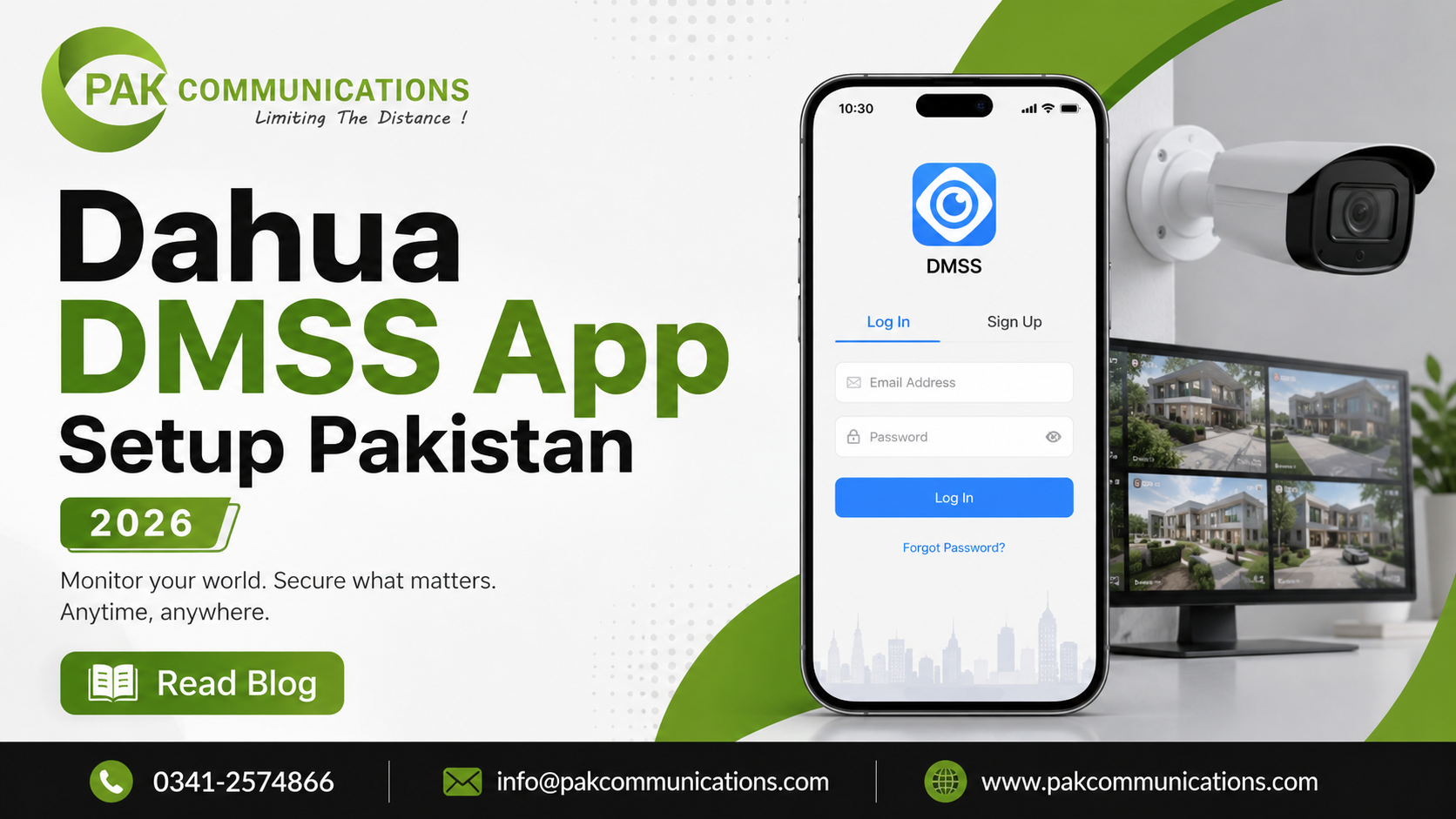
Most Pakistani Dahua camera owners install their CCTV system, hand the remote to a security guard, and never realize their NVR or DVR can stream live footage directly to their mobile phone from anywhere in the world. The Dahua DMSS app turns every Dahua NVR, DVR, and WiFi camera into a remote monitoring system accessible from any Android or iOS device with an internet connection, whether you are sitting in your office in Karachi, travelling to Lahore, or abroad.
The app is free, works over Pakistan’s mobile data networks including 4G and 5G, and does not require technical networking knowledge to set up for most standard Dahua systems. The P2P connection method that Dahua uses means most Pakistani users can add their NVR or DVR to the app by scanning a QR code on the recorder without any router configuration or port forwarding. For Pakistani property owners who want to monitor their home, shop, factory, or office from their phone without paying for a monitoring service, the DMSS app delivers that capability at no ongoing cost.
This guide covers the complete dahua dmss app setup guide pakistan process from download to live viewing, including how to add an NVR or DVR, how to connect a standalone WiFi camera, how to enable motion alerts, and how to fix the most common connection problems Pakistani users face including app disconnection during load shedding and connectivity issues on Pakistani mobile data networks.
For the full range of Dahua cameras compatible with the DMSS app, visit Dahua HD cameras Pakistan at PAK Communications before reading further.
What Is the Dahua DMSS App and What Can It Do
DMSS stands for Data Mobile Surveillance System. It is Dahua’s official free mobile application that connects to Dahua NVR, DVR, and standalone WiFi camera systems over the internet, giving property owners live viewing, recorded footage playback, and smart alert capability from any location on an Android or iOS device.
The app is the primary remote access method for Dahua systems in Pakistan and is used by homeowners monitoring their property during load shedding from another room, shop owners checking their cashier counter from home after hours, factory managers viewing production floor activity during off-site meetings, and farmhouse owners monitoring perimeter cameras from Karachi city while their property is unoccupied.
Core Features of the DMSS App
Live View
The live view feature streams real-time footage from all cameras connected to your NVR, DVR, or standalone device directly to your phone screen. Pakistani users on 4G mobile data can view live streams from multiple cameras simultaneously in a split-screen layout. Stream quality adjusts automatically based on available bandwidth, switching between HD and standard definition to maintain a stable connection on slower data connections common in some Pakistani network coverage areas.
Remote Playback
The playback feature allows you to review recorded footage stored on your NVR or DVR hard drive from your phone without being physically present at the recorder. A Pakistani shop owner who receives a motion alert at 2 AM can open the DMSS app, navigate to the time of the alert, and review the recorded footage immediately without traveling to the shop. Playback supports timeline scrubbing, speed control, and snapshot capture directly from the phone screen.
PTZ Camera Control
For Pakistani properties with Dahua PTZ cameras, the DMSS app provides full pan, tilt, and zoom control from the phone screen using on-screen directional controls. Preset positions saved on the NVR are accessible through the app, allowing remote operators to jump to any saved camera position instantly. This feature is particularly useful for farmhouse and large property owners in Pakistan who need to investigate a motion alert by actively controlling the PTZ camera to check specific areas of the property.
Motion Alerts and Push Notifications
When a camera or NVR detects motion, the DMSS app sends a push notification to the registered mobile phone with a snapshot of the triggering event. Pakistani property owners receive these alerts on their phone regardless of location, providing immediate awareness of activity at their property without requiring continuous live monitoring. SMD-enabled cameras send alerts only for human and vehicle detections, significantly reducing false alert frequency from wind movement, animals, and lighting changes.
Two Way Audio
Dahua cameras with built-in microphones and speakers support two-way audio through the DMSS app, allowing the property owner to listen to and speak through the camera from their phone. This feature is used at Pakistani residential entrance gates where the owner can speak to a visitor through the camera without opening the gate, and at shop entrances where the manager can address a situation remotely without being physically present.
P2P Connection and Why It Suits Pakistani Users
Dahua’s P2P (peer to peer) connection method routes the DMSS app connection through Dahua’s cloud servers without requiring any router configuration, port forwarding, or static IP address on the Pakistani internet connection at the property. This is the most important technical advantage of the DMSS app for Pakistani users because Pakistan’s residential and commercial internet connections from providers like PTCL, Nayatel, StormFiber, and Jazz broadband almost universally use dynamic IP addresses that change periodically, making traditional port forwarding setups unreliable for remote access.
P2P connection requires only that the NVR, DVR, or camera is connected to the internet and that P2P is enabled in the device settings, which it is by default on current Dahua products. The app then connects to the device through Dahua’s cloud infrastructure using the device’s unique serial number as the identifier, with no router configuration required on the property’s internet connection.
How to Download and Install Dahua DMSS App in Pakistan
The DMSS app is available as a free download on both Android and iOS platforms in Pakistan. No registration or subscription is required to download or use the app. The download takes under two minutes on a standard Pakistani 4G mobile data connection.
Downloading DMSS on Android in Pakistan
Step by Step Android Download
Open the Google Play Store on your Android phone. Search for “DMSS” in the search bar. The correct app appears as “DMSS” published by Dahua Technology. Tap Install and wait for the download to complete. The app size is approximately 80 to 100 megabytes. Once installed, tap Open to launch the app for the first time.
Android Permissions Required
On first launch the app requests several permissions that are required for full functionality. Allow notifications so push alerts from motion detection events reach your phone. Allow access to your camera and microphone if you plan to use two-way audio features. Allow access to local storage for saving snapshots and video clips from the app. Denying any of these permissions limits the app’s functionality and prevents motion alert notifications from reaching your phone during security events at your property.
Downloading DMSS on iOS in Pakistan
Step by Step iOS Download
Open the Apple App Store on your iPhone or iPad. Search for “DMSS” in the search bar. The correct app appears as “DMSS” published by Dahua Technology Co. Ltd. Tap Get and authenticate with your Apple ID or Face ID to begin the download. The app installs automatically once the download completes. Tap Open to launch the app for the first time.
iOS Permissions Required
On first launch iOS asks for permission to send notifications, access the microphone, and access local photo storage. Allow all three permissions for full app functionality. iOS users should also ensure Background App Refresh is enabled for the DMSS app in iPhone Settings so push notifications arrive promptly even when the app is not actively open on screen. Pakistani iPhone users who disable background refresh to conserve mobile data frequently miss motion alert notifications as a result.
How to Add Your Dahua NVR or DVR to the DMSS App
Adding your Dahua NVR or DVR to the DMSS app is the single step that unlocks remote access to every camera on your system simultaneously. Once the recorder appears in your app with a green online indicator, your entire camera network becomes accessible from any location in the world with a mobile data or WiFi connection. The process takes under five minutes using the P2P QR code method on any current Dahua NVR or DVR model available in Pakistan.
Before You Start: Network Requirements
Your Dahua NVR or DVR must be connected to your internet router via a network cable before the DMSS app can reach it. A direct cable connection from the recorder’s network port to your router delivers a stable, consistent connection that maintains reliable app accessibility throughout the day, including during the brief reconnection periods that follow load shedding power restoration when your router and recorder restart simultaneously.
Confirming Internet Connectivity on the Recorder
Before opening the DMSS app, verify that your recorder has an active internet connection. On the recorder interface navigate to Main Menu, then Network, then TCP/IP. Confirm the IP address, gateway, and DNS fields are populated. Pakistani routers using DHCP populate these fields automatically when the network cable is connected. Empty or incorrect fields indicate the recorder is not communicating with your network and the DMSS app cannot establish a connection until this is resolved.
Confirming P2P Status on the Recorder
Navigate to Main Menu, then Network, then P2P on the recorder interface. The P2P status must show Online before attempting to add the device to the app. An Offline status means the recorder cannot reach Dahua’s cloud servers, which prevents the app connection regardless of your local network configuration. In Pakistani installations this is most commonly caused by an incorrect DNS entry on the recorder or a router firewall setting blocking outbound connections to Dahua’s servers.
Adding Your Recorder Using the QR Code Method
The QR code method is the fastest and most reliable approach for Pakistani users and eliminates the risk of manual entry errors on long alphanumeric serial numbers.
Step One: Locate the QR Code on Your Recorder
Navigate to Main Menu, then Network, then P2P on your recorder interface. A unique QR code appears on this screen alongside your device serial number. This QR code contains your recorder’s P2P identifier and is the direct key to connecting the DMSS app to your specific device.
Step Two: Initiate Device Addition in the DMSS App
Open the DMSS app on your phone and tap the plus icon in the top right corner of the home screen. Select Add Device from the options that appear. Tap Scan QR Code and point your phone camera at the QR code displayed on your recorder screen. The app reads the code instantly and populates the device serial number automatically in the add device form.
Step Three: Enter Your Device Password
After a successful QR scan the app prompts for the device password. This is the admin password configured on your NVR or DVR during initial installation, not your WiFi or broadband router password. If your installer configured a custom password during setup, obtain it before proceeding. Pakistani users who have forgotten their recorder password can reset it through the local recorder interface before attempting the DMSS connection.
Step Four: Name Your Device and Save
After the password is accepted the app adds the recorder and prompts for a device name. Choose something specific and descriptive such as Factory NVR Karachi or Home System DHA so multiple properties are easy to distinguish in your device list. Tap Save and the recorder appears on your DMSS home screen with a green online indicator confirming an active connection.
Adding Your Recorder Using Manual Serial Number Entry
The manual entry method is the alternative when QR code scanning is not possible, such as when accessing a recorder at a remote property without traveling to the site.
Locating the Serial Number
The serial number is printed on a sticker on the bottom or rear panel of your Dahua recorder. It is also accessible through the recorder interface under Main Menu, then System, then System Info. The serial number is a unique alphanumeric string that identifies your specific device on Dahua’s P2P network.
Completing Manual Entry
Open the DMSS app, tap the plus icon, select Add Device, and choose SN Add rather than QR code scan. Enter the serial number exactly as printed, paying close attention to characters that are easy to confuse such as the number zero versus the letter O and the number one versus the letter I. Enter the device password when prompted, name the device, and tap Save. The connection process from this point is identical to the QR code method.
Already Planning Your NVR Purchase
For Pakistani buyers who are still selecting their NVR before configuring the DMSS app, reading the guide on best Dahua WiFi camera for home Pakistan first helps you understand which Dahua camera models integrate most seamlessly with the DMSS app before committing to a hardware purchase.
How to Add a Dahua WiFi Camera Directly to DMSS App
Dahua WiFi cameras connect to the DMSS app without requiring an NVR or DVR, making them the simplest entry point into remote camera monitoring for Pakistani homeowners and small property owners who want mobile viewing capability without investing in a full recorder-based system. A standalone Dahua WiFi camera connected to your home or shop WiFi router streams live footage directly to the DMSS app over your internet connection using the same P2P technology that NVR and DVR systems use.
For Pakistani buyers considering a standalone WiFi camera before committing to a full NVR-based system, browsing the range of Dahua WiFi cameras at PAK Communications gives you a live reference of available models and their specifications before starting the setup process.
What You Need Before Starting
Router and WiFi Requirements
Your Dahua WiFi camera connects to a 2.4GHz WiFi network. Most Pakistani home and commercial routers broadcast both 2.4GHz and 5GHz networks simultaneously. If your router broadcasts both on the same network name, the camera connects automatically to the correct frequency. If your router uses separate network names for 2.4GHz and 5GHz, connect your phone to the 2.4GHz network before starting the camera setup process to ensure the app and camera communicate on the same frequency during initial configuration.
Phone Proximity During Initial Setup
Keep your phone within two to three meters of the camera during the initial setup process. The AP mode connection used during setup requires a close-range WiFi signal between your phone and the camera before the camera is configured to connect to your home router. Moving too far from the camera during setup interrupts the AP connection and requires restarting the process from the beginning.
Adding a Dahua WiFi Camera Using AP Mode
AP mode is the standard initial setup method for all standalone Dahua WiFi cameras. In AP mode the camera broadcasts its own temporary WiFi network that your phone connects to directly, allowing the DMSS app to configure the camera’s permanent home network connection.
Step One: Power On the Camera and Reset If Required
Connect the camera to power and wait 30 seconds for it to complete its startup sequence. If the camera has been previously configured, perform a factory reset by holding the reset button on the camera body for 10 seconds until the indicator light flashes rapidly. A freshly reset camera is ready for AP mode setup.
Step Two: Enable AP Mode on the Camera
On some Dahua WiFi camera models AP mode activates automatically on first power-on after a reset. On other models press the WiFi button or reset button briefly once to activate AP mode. The camera’s indicator light changes to a slow blue flash when AP mode is active and the camera is broadcasting its temporary WiFi network.
Step Three: Connect Phone to Camera AP Network
Go to your phone’s WiFi settings and look for a network named something similar to IPC or Dahua followed by a series of numbers. This is the camera’s temporary AP network. Connect to it. No password is required for the AP network during initial setup. Your phone internet connection drops temporarily while connected to the camera AP network, which is normal during this step.
Step Four: Configure Camera in DMSS App
Return to the DMSS app. Tap the plus icon and select Add Device, then select Wireless Device or WiFi Camera from the options. The app detects the camera on the AP network automatically and displays it in the device list. Tap the camera to begin configuration. The app prompts you to select your home WiFi network from a list and enter the WiFi password. Enter your router password carefully, paying attention to uppercase and lowercase characters, as an incorrect password is the most common cause of setup failure at this step for Pakistani users.
Step Five: Camera Connects to Home WiFi and App
After the WiFi credentials are entered the camera disconnects from AP mode and connects to your home router. The camera indicator light changes to a steady blue when the connection to your router is successful. Return to your phone WiFi settings and reconnect to your normal home or shop network. Open the DMSS app and the camera appears in your device list with a green online indicator confirming successful setup.
WiFi Camera Placement for Pakistani Properties
Router Signal Strength at Camera Position
A Dahua WiFi camera requires a stable WiFi signal at its installation position to maintain consistent DMSS app connectivity. Pakistani homes and shops with thick concrete walls, which are the standard construction method across urban Pakistan, experience significant WiFi signal attenuation between rooms and floors. Before finalizing a camera position, check the WiFi signal strength at that location on your phone. A signal showing two bars or fewer at the camera position will produce frequent disconnections that interrupt live viewing and motion alert delivery.
WiFi Extender for Weak Signal Areas
Pakistani properties where the camera position has insufficient direct router signal benefit from a WiFi extender or mesh network node positioned between the router and the camera. A WiFi extender placed in the room or area adjacent to the camera position typically delivers adequate signal strength at the camera without requiring cable routing to extend the router’s physical reach.
How to View Live Footage and Playback on DMSS App
Once your NVR, DVR, or standalone WiFi camera is added successfully to the DMSS app, accessing live footage and recorded playback from anywhere in Pakistan or abroad takes seconds. The live view and playback interfaces are designed for straightforward mobile operation and require no technical knowledge to navigate after the initial device setup is complete.
Viewing Live Footage on DMSS App
Opening Live View
Tap your device name on the DMSS app home screen. The app opens the live view interface and begins streaming footage from all connected cameras within five to ten seconds on a stable Pakistani 4G connection. Cameras appear as individual tiles on the screen. Tap any single tile to expand it to full screen. Pinch outward on a full screen stream to activate digital zoom on the live image.
Multi-Camera Split Screen Layout
The DMSS app supports viewing multiple cameras simultaneously in split screen layouts of one, four, eight, or sixteen tiles depending on your camera count. Swipe left or right across the camera grid to scroll through additional cameras beyond the initial screen view. For Pakistani property owners with eight or sixteen camera systems, the split screen layout gives a complete property overview at a glance without needing to tap into individual cameras one at a time.
Stream Quality Adjustment for Pakistani Mobile Data
The DMSS app offers main stream and sub stream options for each camera channel. Main stream delivers full resolution footage that consumes more mobile data. Sub stream delivers reduced resolution footage that loads faster and uses significantly less data on Pakistani mobile connections. Pakistani users monitoring their property while on the move on a 4G connection benefit from switching to sub stream for routine monitoring and switching to main stream only when a specific camera requires closer inspection during a security event.
Accessing Recorded Playback on DMSS App
Opening Playback Mode
From the live view screen tap the playback icon at the bottom of the interface. The app switches to playback mode and displays a timeline bar at the bottom of the screen showing recorded footage availability across the current day. Green segments on the timeline indicate periods with recorded footage. Tap any point on the timeline to jump to that time in the recording.
Timeline Navigation and Speed Control
Pinch inward or outward on the timeline bar to zoom in for minute-by-minute precision or zoom out for an hour-by-hour overview of the full recording day. The playback speed control allows reviewing footage at 2x, 4x, or 8x fast forward speed, which is useful for Pakistani commercial property owners scanning hours of overnight recording quickly to identify the time window of a specific incident without watching footage in real time.
Saving Snapshots and Video Clips
During live view or playback, tap the snapshot icon to capture a still image of the current frame directly to your phone’s photo gallery. Tap the record icon to begin saving a video clip from the current stream to your phone’s local storage. These saved snapshots and clips serve as evidence documentation for Pakistani property owners reporting incidents to insurance companies or law enforcement following a security event.
How to Set Up Motion Alerts and Push Notifications
Motion alerts transform the DMSS app from a passive viewing tool into an active security notification system. Instead of checking your phone manually to monitor your property, the app sends an instant push notification with a snapshot of the triggering event the moment your camera or NVR detects movement. For Pakistani property owners who cannot monitor a live feed continuously, motion alerts provide immediate awareness of activity at their property around the clock including during load shedding hours when properties are most vulnerable.
Enabling Motion Detection on Your NVR or DVR
Accessing Motion Detection Settings
On your Dahua NVR or DVR interface navigate to Main Menu, then Event, then Motion Detection. A channel list appears showing all connected cameras. Select the camera channel you want to configure. Enable the Motion Detect toggle for that channel. Repeat this process for every camera channel where you want motion alerts activated.
Setting the Motion Detection Sensitivity
The sensitivity slider controls how much movement in the frame triggers a detection event. Pakistani outdoor cameras set to maximum sensitivity trigger constantly from wind movement in trees and foliage, passing vehicle headlight reflections, and insects moving near the IR illuminators at night. Set outdoor cameras to medium sensitivity as a starting point and adjust downward if false alerts remain frequent after the first few nights of operation. Indoor cameras in controlled environments can run at higher sensitivity without the same false alert frequency.
Defining the Motion Detection Zone
The motion detection zone setting allows you to draw a specific area within the camera frame where movement triggers an alert. Drawing the detection zone to cover only the critical area of the frame, such as the entrance pathway rather than the full forecourt, eliminates alerts triggered by movement in irrelevant areas like passing traffic on an adjacent road visible at the edge of the frame. This zone configuration is particularly valuable for Pakistani cameras installed near busy roads where roadside vehicle movement would otherwise trigger continuous alerts.
Enabling SMD Alerts for Human and Vehicle Detection Only
SMD (Smart Motion Detection) is available on mid-range and premium Dahua IP cameras and filters motion alerts to trigger only on confirmed human and vehicle movement, eliminating false alerts from animals, foliage, lighting changes, and other non-human triggers.
Configuring SMD on NVR
On your Dahua NVR navigate to Main Menu, then Event, then Smart Plan for the relevant camera channel. Enable the SMD option. Once SMD is active the camera analyzes motion events using AI classification before sending an alert, ensuring that only genuine human or vehicle detections reach your DMSS app as push notifications. Pakistani property owners who switch from standard motion detection to SMD typically report an immediate and dramatic reduction in overnight false alerts.
Configuring Push Notifications in the DMSS App
Enabling Notifications in App Settings
Open the DMSS app and tap the profile icon in the bottom right corner of the home screen. Navigate to Settings, then Alarm Notification. Ensure the master notification toggle is enabled. This setting controls whether any alerts from any device reach your phone. If this toggle is off no motion alerts are delivered regardless of how the NVR or camera is configured.
Device Level Notification Settings
From the DMSS app home screen tap and hold your device name to access device settings. Navigate to the notification settings for that specific device and confirm alerts are enabled for the camera channels you configured on the NVR. Pakistani users with multiple properties added to the same DMSS app can enable or disable notifications per device independently, allowing selective alerting from high-priority locations while muting routine alerts from lower-risk camera positions.
Testing Your Alert Configuration
After completing the notification setup, walk in front of one of your configured cameras and wait 30 to 60 seconds for the NVR to process the motion event and send the alert through Dahua’s P2P cloud to your phone. A push notification should arrive with a snapshot of your movement. If no notification arrives within two minutes, recheck the motion detection enable status on the NVR, confirm the master notification toggle in the DMSS app is on, and verify your phone’s system notification permissions for the DMSS app are enabled in your Android or iOS settings.
Common DMSS App Problems and Fixes for Pakistani Users
The DMSS app works reliably on stable internet connections with correctly configured Dahua devices. When problems occur, they almost always trace back to one of five root causes: network connectivity at the property, load shedding power interruption, incorrect device credentials, phone notification settings, or mobile data quality on Pakistani networks. The fixes below address every common problem Pakistani DMSS users encounter, organized by symptom for quick reference.
Device Showing Offline in the DMSS App
A device showing offline in the DMSS app means the app cannot reach your NVR, DVR, or camera through Dahua’s P2P cloud. This is the most frequently reported DMSS problem among Pakistani users and has three primary causes.
Load Shedding Power Interruption
When grid power cuts, your NVR or DVR and your internet router both lose power simultaneously. When power is restored both devices restart, but the router typically takes 60 to 90 seconds longer than the recorder to fully reconnect to the internet. During this window the recorder attempts its P2P connection before the router has established an internet link, resulting in an offline status that persists until the recorder retries its P2P connection on its next automatic check cycle, typically every three to five minutes. Pakistani users who see an offline status immediately after load shedding restoration should wait five to ten minutes before investigating further, as the connection restores automatically in most cases without any manual intervention.
Router Internet Connection Dropped
If the offline status persists beyond ten minutes after power restoration, check whether your router has a valid internet connection by testing a website on a device connected to the same router. Pakistani broadband connections from PTCL, StormFiber, and Nayatel occasionally drop after extended power outages and require a router restart or ISP reconnection before internet service is restored. Once the router internet connection is confirmed active, the NVR or DVR P2P status updates to online within three to five minutes automatically.
NVR or DVR Network Cable Disconnected
Physical network cable disconnection is a surprisingly common cause of offline status in Pakistani installations where cable routing passes through areas with foot traffic or where cable management is loose. Check that the network cable connecting your recorder to the router or switch is fully seated at both ends. A partially disconnected cable produces intermittent offline status that appears and disappears without any obvious pattern.
Push Notifications Not Arriving on Phone
DMSS App Notification Permission Disabled on Phone
The most common cause of missing push notifications on both Android and iOS is a disabled notification permission for the DMSS app at the phone system level. On Android go to Settings, then Apps, then DMSS, then Notifications and confirm notifications are enabled. On iOS go to Settings, then DMSS, then Notifications and confirm Allow Notifications is toggled on. Pakistani users who installed the app and denied notification permission during the initial setup prompt must enable it manually through phone settings as the app does not prompt again after the initial request is declined.
Master Notification Toggle Disabled in DMSS App
If phone notification permissions are confirmed enabled but alerts are still not arriving, check the master notification toggle inside the DMSS app itself. Navigate to Profile, then Settings, then Alarm Notification and confirm the master toggle is on. This internal app toggle operates independently of the phone system permission and must be enabled in addition to the phone level permission for alerts to reach the user.
Slow or Buffering Live Stream on Pakistani Mobile Data
Switching From Main Stream to Sub Stream
Buffering and slow live stream loading on Pakistani 4G connections is almost always resolved by switching from main stream to sub stream in the DMSS app channel settings. Main stream delivers full resolution video that requires consistent high bandwidth. Sub stream delivers reduced resolution video optimized for mobile connections with variable bandwidth. For routine monitoring on a Pakistani mobile data connection, sub stream provides smooth uninterrupted viewing. Switch to main stream only when a specific situation requires full resolution detail.
Network Congestion on Pakistani Mobile Networks
Pakistani mobile networks experience congestion during peak evening hours between 8 PM and 11 PM when residential data usage is highest. DMSS live stream quality degrades during these congestion periods regardless of your NVR or camera configuration. If live stream performance is consistently poor during evening hours but acceptable during daytime, network congestion rather than a device or configuration problem is the cause. Switching to a different mobile network operator temporarily resolves congestion-related stream quality issues when monitoring during peak hours is essential.
Wrong Password Error When Adding Device
Incorrect Admin Password Entry
A wrong password error during device addition means the password entered in the DMSS app does not match the admin password configured on the NVR or DVR. This is not your WiFi password or your broadband router password. It is the password set on the recorder itself during initial installation. Pakistani users whose systems were installed by a third-party CCTV technician should contact their installer to confirm the admin password that was set during installation before attempting to add the device again.
Default Password on Unconfigured Devices
Dahua NVR and DVR models that were never assigned a custom password during installation may use a default password. Attempt the addition using admin as both the username and password as a starting point. If this fails, access the recorder’s local interface directly and set a new admin password through Main Menu, then System, then Account before attempting the DMSS app addition again with the newly set password.
Frequently Asked Questions
Q)How do I download the Dahua DMSS app in Pakistan?
The DMSS app is available as a free download from the Google Play Store on Android and the Apple App Store on iOS. Search for DMSS in either store and install the app published by Dahua Technology. No registration or subscription is required. The download takes under two minutes on a standard Pakistani 4G connection. After installation allow all requested permissions including notifications, microphone access, and local storage to ensure full app functionality including motion alert delivery.
Q)Why is my Dahua camera showing offline in the DMSS app in Pakistan?
The most common cause in Pakistan is load shedding power interruption. When power is restored after a cut, your internet router takes 60 to 90 seconds longer than your NVR to reconnect to the internet. Wait five to ten minutes after power restoration before investigating further as the P2P connection restores automatically. If the offline status persists, check your router has an active internet connection and confirm the network cable between your recorder and router is fully connected at both ends.
Q)Does the Dahua DMSS app work on Pakistani mobile data?
Yes, the DMSS app works on Pakistani 4G and 5G mobile data connections from all major networks. For smooth live viewing on mobile data, switch the camera stream from main stream to sub stream in the app channel settings. Sub stream uses significantly less data while maintaining usable image quality for routine monitoring. Switch to main stream only when full resolution detail is needed during a specific security event. Pakistani mobile networks may experience congestion during peak evening hours affecting stream quality temporarily.
Q)How do I set up motion alerts on the Dahua DMSS app in Pakistan?
Enable motion detection on each camera channel through your NVR interface under Main Menu, then Event, then Motion Detection. In the DMSS app navigate to Profile, then Settings, then Alarm Notification and enable the master notification toggle. Also confirm notification permissions for the DMSS app are enabled in your phone system settings. For Pakistani outdoor cameras experiencing frequent false alerts from wind and passing traffic, enable SMD on your NVR to filter alerts to confirmed human and vehicle detections only.
Q)Can I add multiple properties to the Dahua DMSS app in Pakistan?
Yes, the DMSS app supports adding multiple NVR, DVR, and standalone camera devices to a single app account. Each device appears separately on the home screen with its own name and online status indicator. Pakistani property owners managing multiple sites such as a home, a shop, and a factory can monitor all locations from a single DMSS app installation. Notification settings can be configured independently per device, allowing selective alerting from high-priority locations while muting routine alerts from others.
Q)Why are my Dahua DMSS push notifications not working in Pakistan?
Two settings must both be enabled for push notifications to work. First, confirm notification permissions for the DMSS app are enabled in your phone system settings under Apps on Android or Settings on iOS. Second, confirm the master notification toggle inside the DMSS app itself is enabled under Profile, then Settings, then Alarm Notification. Both settings must be active simultaneously. If both are enabled and alerts still do not arrive, confirm motion detection is enabled on the relevant camera channels on your NVR interface.
Get Your Dahua Camera System Connected in Pakistan
The Dahua DMSS app removes the single biggest limitation of a traditional CCTV system: the requirement to be physically present at the recorder to view footage. Once your NVR, DVR, or standalone WiFi camera is connected through the app, your entire camera network becomes a live remote monitoring system accessible from any location in Pakistan or abroad, on any Android or iOS device, at no ongoing cost beyond your existing mobile data or WiFi connection.
The setup process this guide covers takes under thirty minutes from download to first live view for a standard Pakistani NVR or DVR installation. The P2P connection method eliminates the router configuration complexity that made remote camera access difficult for non-technical users on Pakistan’s dynamic IP broadband connections. Motion alerts with SMD filtering deliver actionable notifications rather than a constant stream of false triggers from wind, animals, and passing traffic. Playback from anywhere means a Pakistani business owner discovers a 3 AM incident at their shop before arriving the next morning rather than after.
The problems this guide addresses, offline status after load shedding, buffering on Pakistani mobile data, missing push notifications, wrong password errors, all have straightforward fixes that resolve within minutes once the correct cause is identified. None of them require technical expertise beyond the step by step instructions in the troubleshooting section.
If your Dahua camera system is already installed and you want to get it connected to the DMSS app, the steps in this guide apply directly to any current Dahua NVR, DVR, or WiFi camera model. If you are planning a new Dahua system and want to ensure every component is DMSS-compatible before purchasing, PAK Communications can confirm compatibility for any specific model combination before your purchase is finalized.
For the full range of Dahua cameras that work seamlessly with the DMSS app across all resolution tiers and form factors, browse Dahua outdoor cameras at PAK Communications and confirm your preferred models before calling or visiting the store.
Contact PAK Communications:
- Phone: (021) 4832293-4
- WhatsApp: 0341-2574866
- Email: info@pakcommunications.com
- Address: Suite #08, 4th Floor, Dar-ul-Furqan Building, Gulshan-e-Iqbal Block 13-B, Main University Road, Karachi
- Hours: Mon-Sat 9:30 AM – 6:30 PM